Cashy Voice Entry 2026: Log Any Expense on iPhone in 3 Seconds (Complete Guide)
In this article+
- What Cashy Voice Entry Actually Does
- One-Time Setup (Takes 2 Minutes)
- The Core Patterns That Work
- Expense with amount and category:
- Expense with account:
- Income:
- Transfers:
- What Doesn't Work (And How to Fix It)
- Pro Patterns for Power Users
- How to Make Voice Entry a Habit
- What Changes After 30 Days of Voice Entry
- Start Today — First Voice Entry in Under 60 Seconds
Expense tracking is a simple problem with a hard solution: consistency. The math is trivial (spent money, record amount, repeat). The human part is brutal. Every extra second of friction is another reason to give up.
Voice entry is the single biggest reduction of that friction ever shipped on a finance app. Tap once, say 'spent 47 on groceries from my Visa', the transaction is logged, categorized, and timestamped. You're done before your phone's screen dims.
This guide is a complete walkthrough of Cashy's voice entry: how to set it up, exactly what to say for different scenarios, common mistakes, and how to turn it into a habit that lasts.
What Cashy Voice Entry Actually Does
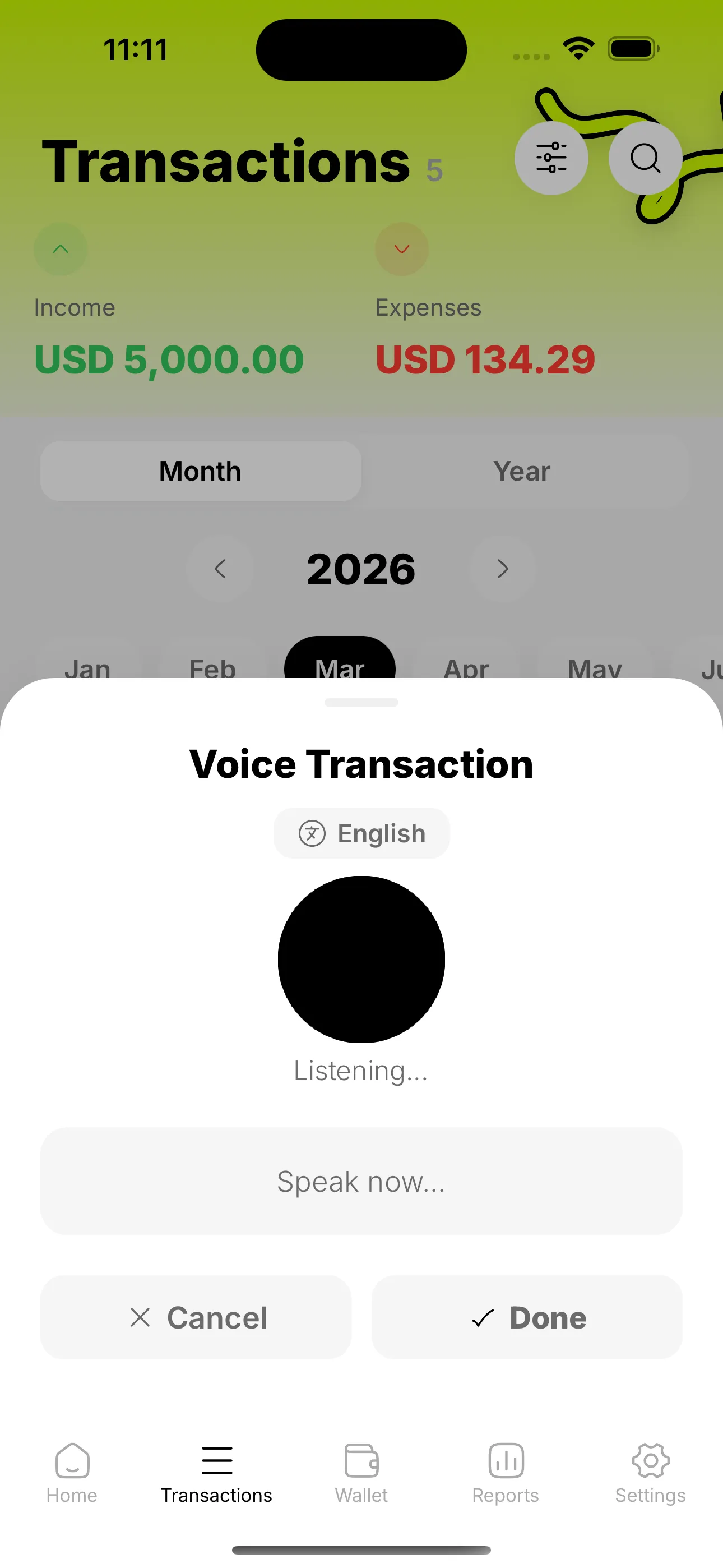
When you tap the microphone icon in Cashy and speak, three things happen:
1. Your iPhone's on-device speech recognition converts your voice to text. 2. Gemini AI parses the text into a structured transaction: amount, category, account, type. 3. Cashy pre-fills the transaction form so you can review and confirm in one tap.
The whole interaction is typically under 3 seconds end to end. And because Cashy is local-first, nothing about your transaction history ever leaves your device — the AI only sees the single sentence you just spoke.
One-Time Setup (Takes 2 Minutes)
To use voice entry, you need a free Gemini API key (Google gives 1,500 requests/day free — way more than any normal person uses).
1. Download Cashy from the App Store. 2. On the AI Setup screen during onboarding, tap 'Get your free key' — Cashy opens Google AI Studio for you. 3. Copy the generated key. 4. Return to Cashy — it detects the key from your clipboard automatically. 5. Tap Continue.
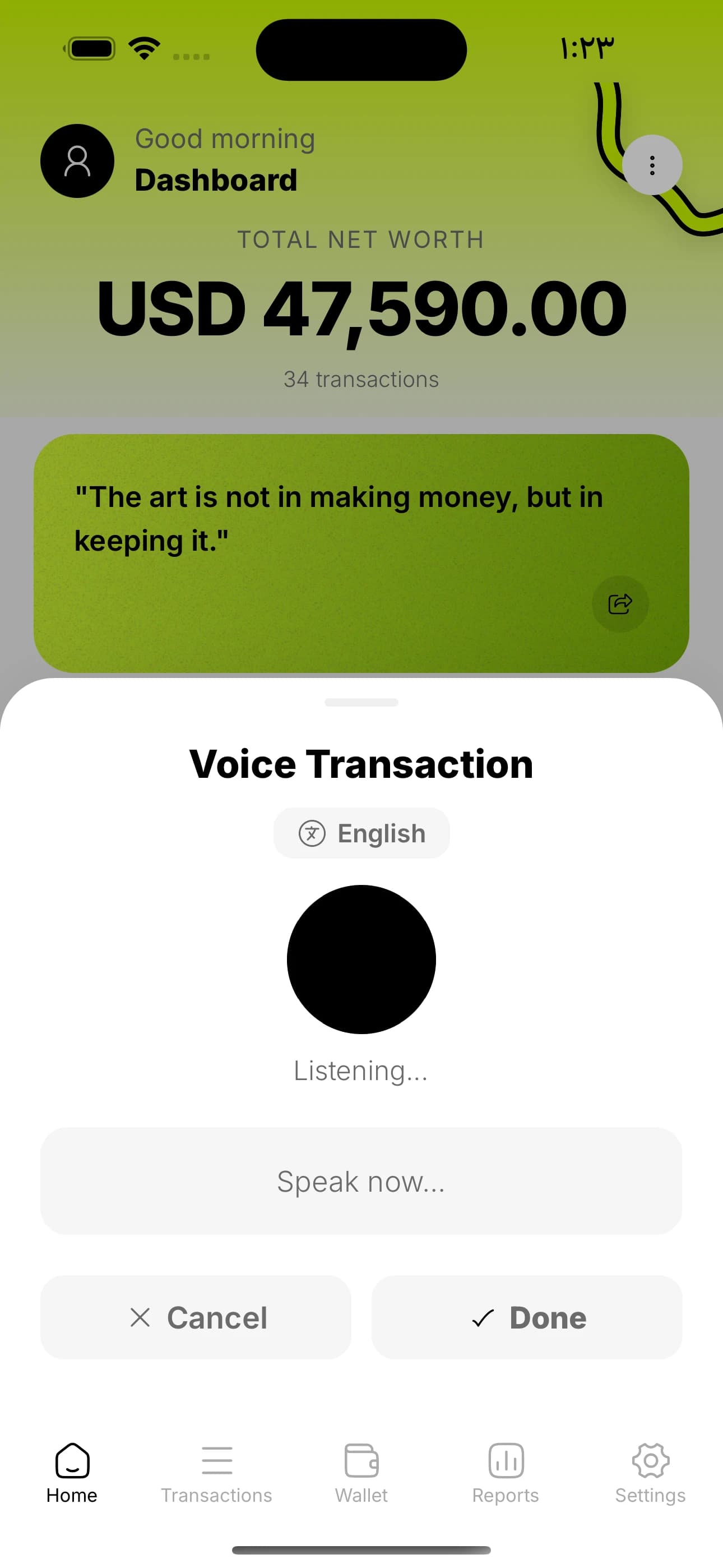
That's it. Voice entry is now active.
The Core Patterns That Work
After testing thousands of real voice entries, clear patterns emerge. These sentence structures work reliably:
Expense with amount and category:
- 'Spent 47 on groceries.' - 'Paid 85 for electricity.' - 'Bought lunch for 15 dollars.'
Expense with account:
- 'Spent 62 on gas from my Visa card.' - 'Paid 120 for car repair from checking.' - 'Spent 8 on coffee from cash.'
Income:
- 'Got paid 3,500 salary to my bank account.' - 'Received 200 freelance payment.' - 'Got 50 refund to checking.'
Transfers:
- 'Transferred 500 from checking to savings.' - 'Moved 1,000 from savings to emergency fund.' - 'Paid off 300 from Visa using checking.'
The AI is good at context. 'Paid off 300 from Visa' is recognized as either a transfer (checking → credit card) or a credit card expense, depending on how you phrase it.
What Doesn't Work (And How to Fix It)
Voice entry has three common failure modes. All three are fixable:
1. Ambiguous amounts. 'Spent a few dollars on coffee' — the AI has to guess. Always say the number. 'Spent 5 on coffee' works perfectly.
2. Currency confusion. In multi-currency setups, saying '50' is ambiguous. Either set your base currency clearly, or explicitly say 'spent 50 euros on dinner'.
3. Unfamiliar account names. If you call your account 'the gold Chase card' in speech but it's saved as 'Chase Sapphire' in Cashy, the AI might not match. Quick fix: rename accounts to what you naturally say ('Visa', 'Chase', 'cash').
Make this real — try Cashy free.
Voice entry, receipt scanning, budgets. No bank linking, no ads.

Pro Patterns for Power Users
After a few weeks of voice entry, most people evolve their own shortcuts. A few that are worth stealing:
The End-of-Day Dump. Some days you're too busy to log transactions in real time. At bedtime, rapid-fire them: 'Spent 4 on coffee. Spent 11 on lunch. Spent 48 on gas. Spent 9 on a snack.' Four transactions logged in under 20 seconds.
The Receipt Pair. For complex purchases, combine voice and receipt scanning. Use voice for simple expenses (one amount, clear category). Use the camera icon for detailed grocery receipts — Cashy reads itemized receipts and can create separate categorized transactions.
The Paycheck Ritual. On payday, use voice: 'Got paid 3,500 salary to checking.' Then immediately: 'Transferred 500 from checking to emergency fund.' Two sentences, two logged actions, salary + savings in under 10 seconds.
How to Make Voice Entry a Habit
Voice entry is only valuable if you actually use it. Here's the lowest-effort habit stack that makes it stick:
1. Add the voice shortcut to your Home Screen. Cashy's home screen widgets make it one tap. Place the widget where your thumb naturally lands.
2. Pair it with existing triggers. The moment you walk out of a store, before your phone goes back in your pocket — that's your voice entry trigger. The pattern is: transaction → phone out → voice entry → phone away.
3. Aim for 90% capture. Don't chase perfection. If you capture 9 out of every 10 transactions, you'll still have better financial awareness than 95% of people. Missing a transaction occasionally is fine. Missing a week is the real risk.
What Changes After 30 Days of Voice Entry
Users who stick with voice entry for a month report three consistent shifts:
- Awareness. You know your spending patterns without having to analyze them. It's just in your head.
- Pause. Before a purchase, there's a micro-moment where you imagine logging it by voice. That tiny pause prevents a lot of impulse spending.
- Effortlessness. Finance tracking stops feeling like a chore. It takes less time per week than brushing your teeth takes per day.
Start Today — First Voice Entry in Under 60 Seconds
Download Cashy for free from the App Store, set up your free Gemini key, and say your first transaction out loud. 'Spent 5 dollars on coffee.' That's it. You've just logged your first expense faster than it takes to unlock most banking apps.
Multiply that by 20 transactions a week, by 52 weeks a year, and you've bought back hours of your life — and gained the financial clarity that most people never find. All because speaking was faster than typing.
Frequently asked questions
How do I track expenses by voice on iPhone?
+
Open Cashy, tap the microphone icon, and speak: "Spent 47 on groceries from Visa." The AI parses the amount, category, and account in 3 seconds and pre-fills the transaction for one-tap confirmation.
Is voice expense tracking actually accurate?
+
Yes, when you say the amount as a number ("spent 5 on coffee" works perfectly). Ambiguous phrases like "spent a few dollars" are harder for AI to parse. Stick to clear amounts and the success rate is over 95%.
Does Cashy voice entry work offline?
+
Speech-to-text on iPhone is on-device. The AI parsing step (Gemini) needs an internet connection. Most voice entries take under 3 seconds and use a tiny amount of data.
Is voice entry private?
+
Cashy does not store your voice recordings. The AI only sees the single text sentence you spoke, never your full transaction history. Your full financial data stays on your device.
How much faster is voice entry compared to manual entry?
+
Voice entry takes about 3 seconds end to end. Manual entry takes 15-30 seconds depending on category and account selection. Across 20 transactions a week, that is a 4-9 minute weekly time saving — and dramatically lower friction, which means you actually log everything.